



Last Updated on September 25, 2026 by Domenica
- How to Deposit a Check with Chime (Step-by-Step)
- 1.Check name and information on the check
- 2. Open Chime App
- 3. Tap ‘Move’, then ‘Deposit check’
- 4. Select the Type of Check You’ll be Depositing
- 5. Enter the check amount
- 6. Endorse the check
- 7. Take a Picture of the Front of Your Check
- 8. Take a Picture of the Back of the Check
- 9. Review & Submit Your Deposit
- 10. Receive Your Funds
- Why Won’t Chime Accept My Check?
- Bad Images
- Missing or incorrect endorsement
- Ineligible check type
- Check from a Bad Account
- Mobile Deposit Limit Reached
- How Long Does Chime Mobile Deposit Take?
- How to Deposit a Check with Chime Mobile Deposit without Direct Deposit
- About Mobile Check Deposit in Other Banking Apps
To deposit a check with Chime, follow these step-by-step directions:
- Open the Chime Mobile App
- Go to the ‘Move‘ tab at bottom of the screen and select ‘Deposit Check‘
- Select type of check and amount you’ll be depositing
- Take photos of front and back of check
- Confirm the correct amount & Submit
- Receive funds in 1-3 business days!
Mobile check deposit isn’t available to every Chime member right away. Chime decides eligibility based on your account history and activity. Activating your Chime debit card and setting up direct deposit can help you qualify, but neither guarantees access.
Once the feature is unlocked, you can deposit checks from anywhere without a trip to a bank.
Note: Chime is a financial technology company, not a bank. Banking services are provided by The Bancorp Bank, N.A. or Stride Bank, N.A., Members FDIC.
Check this video guide by Elijah to see the process in detail:
How to Deposit a Check with Chime (Step-by-Step)
Depositing a check with Chime takes just a few minutes. Here’s how:
1.Check name and information on the check
Make sure the check is made out to you and the name matches your Chime account. Chime can’t accept checks you write to yourself.
2. Open Chime App
Open the Chime app on your phone or tablet to sign in. If you created a PIN for your Chime account as an added layer of protection, go ahead and enter it now.
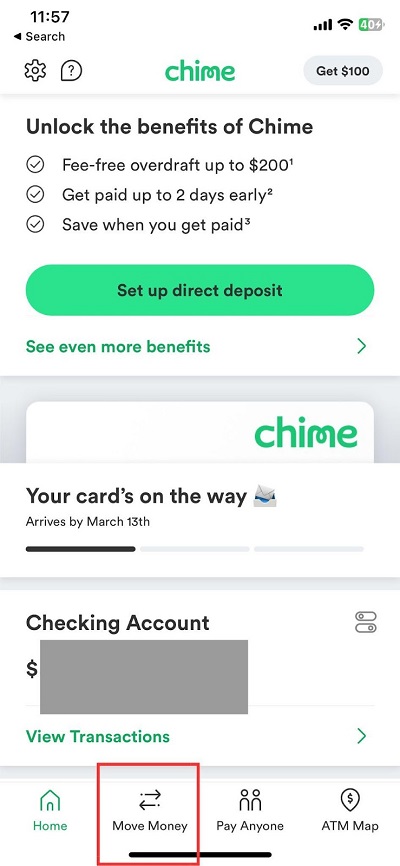
3. Tap ‘Move’, then ‘Deposit check’
Tap the ‘Move’ tab located on the bottom of the Chime app and tap ‘Deposit check.‘ If you don’t see this option, mobile check deposit isn’t available on your account yet. See the section on eligibility below.
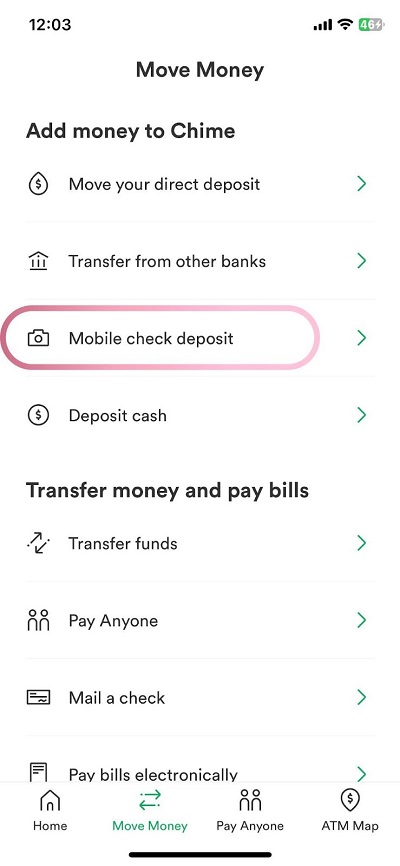
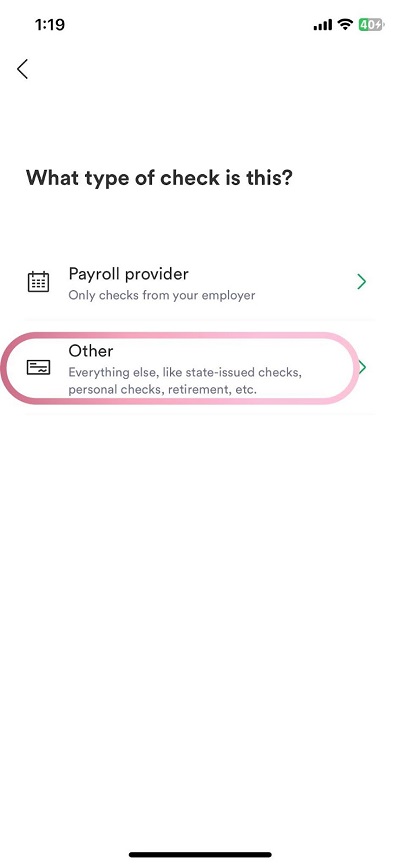
4. Select the Type of Check You’ll be Depositing
Choose the type of check you’re depositing, such as a payroll check, government check or personal check.
5. Enter the check amount
Type in the exact dollar amount on the check and tap Next.
6. Endorse the check
Sign the back of the check in ink. If the app prompts you, add any required wording, such as “For mobile deposit to Chime account only.”
7. Take a Picture of the Front of Your Check
Place the check on a flat, dark surface in good lighting. Make sure all four corners are visible and in focus. Smooth out any wrinkles first, since creases and patterned checks can cause scanning problems.
8. Take a Picture of the Back of the Check
Chime needs images of the front and the back of the check before they can process it.
Before you take a picture of the back of your check, make sure it’s signed.
9. Review & Submit Your Deposit
Before submitting, confirm the amount matches the check and review the expected posting date shown on screen. Once you submit, you can’t deposit or cash the check anywhere else.
10. Receive Your Funds
Funds are available no later than five business days after your deposit. Pending deposits appear in your transaction list and show as available once they post.
Why Won’t Chime Accept My Check?
If you deposited your check with Chime and your check isn’t being accepted, it could be due to a couple of reasons.
Bad Images
Chime processes checks from photos, so the images must clearly show the check writer’s account and routing numbers and the dollar amounts. Blurry, dark or cropped photos are a common reason for rejection. Retake the photos on a dark surface in good lighting.
When you deposit a check online, banks process the check as digital images, so a clear photo is essential.
Missing or incorrect endorsement
Sign the back of the check, and include any wording the app asks for. The name on the front should match your signature. Joint checks need signatures from both payees.
Ineligible check type
Chime can’t accept money orders, traveler’s checks, savings bonds, temporary or starter checks, checks older than six months, or checks from foreign banks.
Check from a Bad Account
Sometimes the problem isn’t on your end. If the check comes from a closed or overdrawn account, Chime can’t collect the funds, and the deposit will be returned. Chime will notify you if a deposit can’t be accepted.
Mobile Deposit Limit Reached
Every member has a mobile check deposit limit, and deposits over that amount won’t go through. See below for how to check your limit.
Chime doesn’t publish one fixed mobile deposit limit. Instead, it sets each member’s limit automatically based on factors like account history, how long the account has been open and account activity. Limits can increase over time.
To find your current limit:
- Tap Profile > Account details
- Tap View limits
- Find your limit under Mobile check deposits
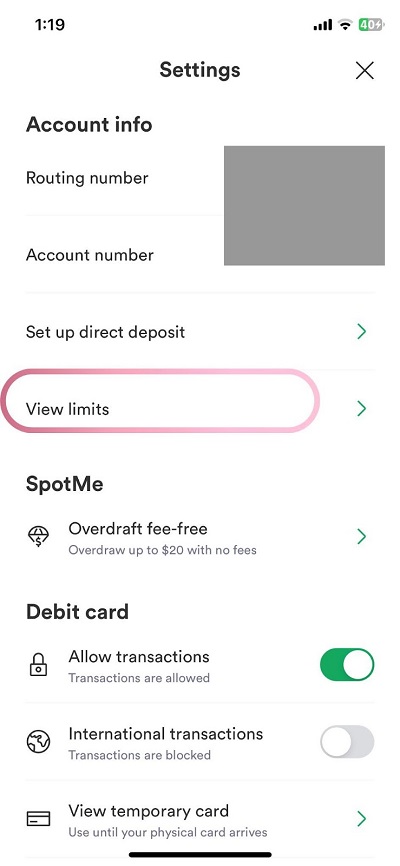
Chime Support can’t raise your limit manually. Setting up direct deposit is one way to help increase it.
If your check is larger than your limit, deposit it at another bank or ask the check writer to pay you by direct deposit or bank transfer.
How Long Does Chime Mobile Deposit Take?
Chime mobile check deposits take up to five business days to post. The app shows the expected posting date before you submit, and you can track the status under Pending deposits in your transactions.
Smaller checks and deposits from members with a longer account history often post sooner. Deposits made at night, on weekends or on bank holidays start processing the next business day.
Keep the physical check until the funds post in case Chime needs you to resubmit it. Once the deposit clears, shred the check or destroy it in another way that removes all account information.
How to Deposit a Check with Chime Mobile Deposit without Direct Deposit
Direct deposit isn’t a strict requirement for most mobile check deposits anymore. Chime considers several factors when deciding eligibility. If mobile deposit isn’t showing in your app, try activating your physical Chime card and setting up a qualifying direct deposit.
Treasury checks are the exception. To deposit a U.S. Treasury check, you need at least one qualifying direct deposit of $1 or more from an employer, payroll provider, government benefit (not a tax refund) or gig economy payer. Note that as of September 30, 2025, the federal government stopped issuing paper checks for most benefits, including Social Security and VA benefits, so these now require direct deposit.
If you can’t use mobile deposit yet, you still have options:
- Chime cash deposits. Cash the check at the bank it’s drawn from (bring an ID), then deposit the cash at a participating retail location. Find locations with the Cash Map in the Chime app. Fees vary.
- Deposit it at another bank and transfer the funds to Chime.
- Ask to be paid electronically by direct deposit or bank transfer instead.
About Mobile Check Deposit in Other Banking Apps
- 5 Things to Do When Depositing a Large Check with Chase Bank
- 4 Steps to Mobile Deposit a Paper Check on Cash App
- How to Deposit a Check for Someone Else (Surprisingly Easy)
- 11 Simple Steps to Mobile Deposit a Check on Venmo
- How to Deposit Checks on Chase App (By ex-Banker)
- 8 Best Direct Deposit Apps to Get Paid Early