


Last Updated on October 8, 2026 by Domenica
- How to Deposit a Check Online by Using a Mobile Banking App
- Quick Answer
- 1. Make Sure the Check is Filled Out Correctly
- 2.Prepare Your Check by Signing the Back
- 3. Open Your Mobile Banking App
- 4. Find and Click the ‘Deposit Checks’ Button
- 5. Take a Picture of the Front of the Check
- 6. Take a Picture of the Back of the Check
- 7. Enter Amount and Confirm Your Deposit
- How to Deposit a Check Online by Using a Scanner
Before the Internet, if you wanted to deposit a check, you would have to head down to your local bank or credit union and hand it to them in person. Maybe they had an ATM machine you could use, but you’d have to drive it down there nonetheless.
Now with the popularity of the Internet and its combination with banking, depositing a check is easier than ever — you can even do it from home!
You can deposit a check using your smartphone or computer either by:
- Taking a picture using the mobile app
- Using a check scanner
How to Deposit a Check Online by Using a Mobile Banking App
Quick Answer
- Prepare Your Check. Sign your name on the back of the check and write ‘For Mobile Deposit Only’
- Open Your Bank’s Mobile App.
- Find and Click the ‘Deposit’ or ‘Deposit Checks’ option in the menu
- Capture a Picture of the Front of the Check. Ensure your check is placed flat on a dark, well-lit surface.
- Flip the Check and Capture a Picture of the Back.
- Type the Exact Dollar Amount Written on the Check.
- Submit to Complete Transaction
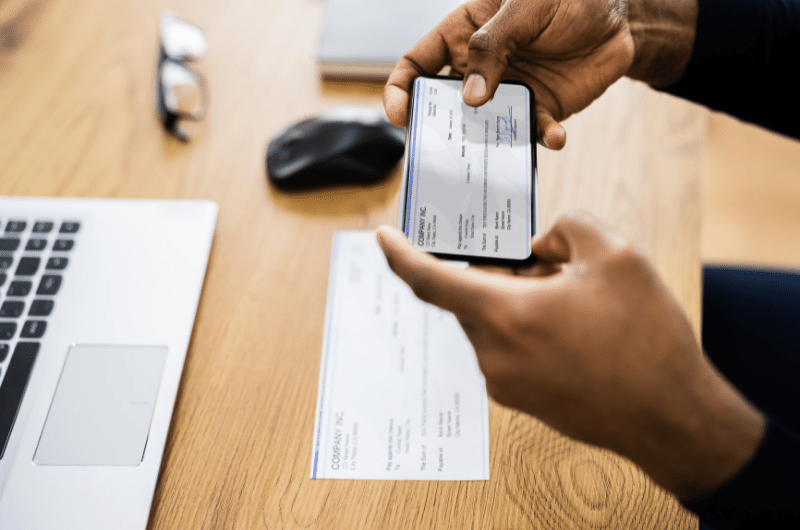
Taking a picture of the check you want to deposit is one of the easiest ways to do it. It’s a popular way to deposit your checks as well, as many banks and credit unions have their own names for the useful feature. Chase Bank calls it Quick Deposit and Wells Fargo uses Wells Fargo Mobile Deposit, but the idea is the same.
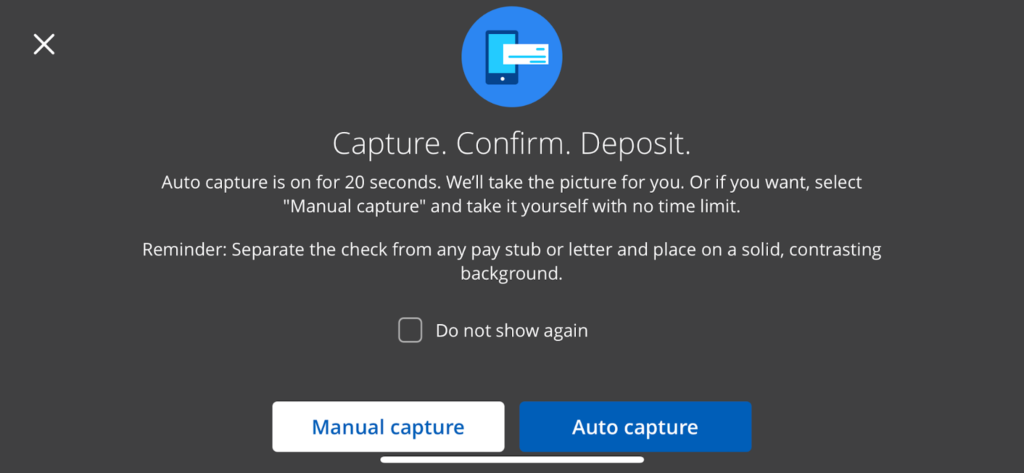
Chase’s Quick Deposit gives their users two options: auto capture and manual capture.
- Auto capture will automatically take a picture of a check when it is in the frame
- Manual capture will let your press a button when you’re ready to take a picture.
To take a picture of your check and deposit it into a checking or savings account, you have to do a couple of things:
1. Make Sure the Check is Filled Out Correctly
Before starting the deposit process, make sure the check has your name as it appears on your account, and is spelled correctly.
Another common issue is the incorrect date, or no date at all. This issue happens the most in the month of January, as people forget about the new year and write stale-dated checks. By verifying that the check is negotiable, you can make sure you dodge any bank fees associated with them declining a deposit.
Lastly, ensure the dollar amount is the same in writing and in numerals. Even though you don’t have to give the check away, it’s not easy to change the amount of the deposit after it’s done. Catch any writing errors before you send it to the bank.
2.Prepare Your Check by Signing the Back
Before depositing your check, you must sign the back to legally authorize your bank to deposit the funds into your account.
To prepare your check follow these steps:
- Flip the check over to the back and sign your name. There’s usually a line provided.
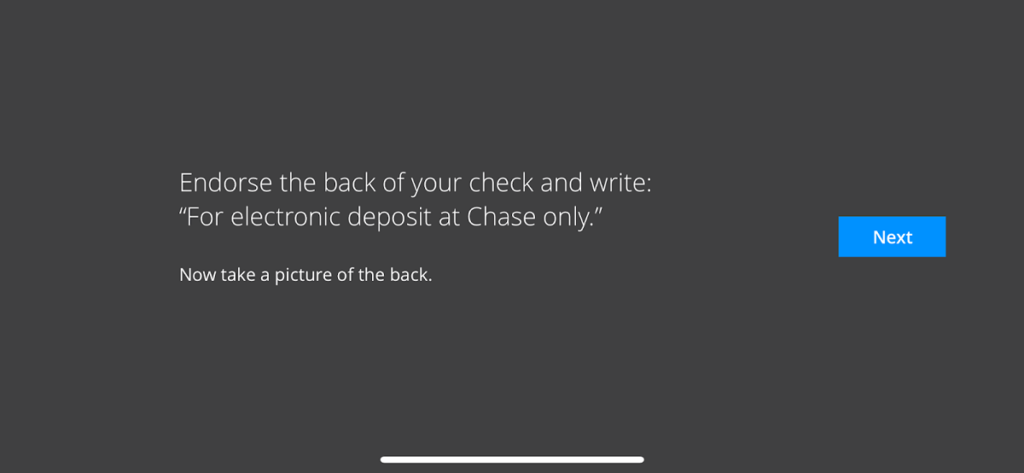
- Write ‘For Mobile Deposit Only’ below your signature. Some banks may simply provide you this as a box to check.
- If the check is written to you and someone else, have the other person sign first. With your signature underneath, you are telling the bank that another person has given the check to you and you are taking responsibility for it.
3. Open Your Mobile Banking App
No matter the bank or credit union you use, you should be able to use the same username and password for everything on the app.
That includes checking your balances, transferring money between your own accounts or transferring money to someone else.
4. Find and Click the ‘Deposit Checks’ Button
Again, each bank is a little different.
In your bank’s mobile app, tap the ‘Deposit’ or ‘Deposit Checks’ option on the menu.
On the Deposit page, you will choose which account you want your funds deposited. If you only have one account, your app may skip this step. If you have more than one account, your app will ask before moving forward.
5. Take a Picture of the Front of the Check
Next, the bank will provide a camera in the app where you can capture pictures of your check.
Picture quality is essential to ensuring your check will be deposited.
For maximum picture quality:
- Place check on a flat, dark surface with a sufficient light source
- Make sure your all four corners of the check are visible in the shot
- Try to stay as still as possible to avoid blurriness
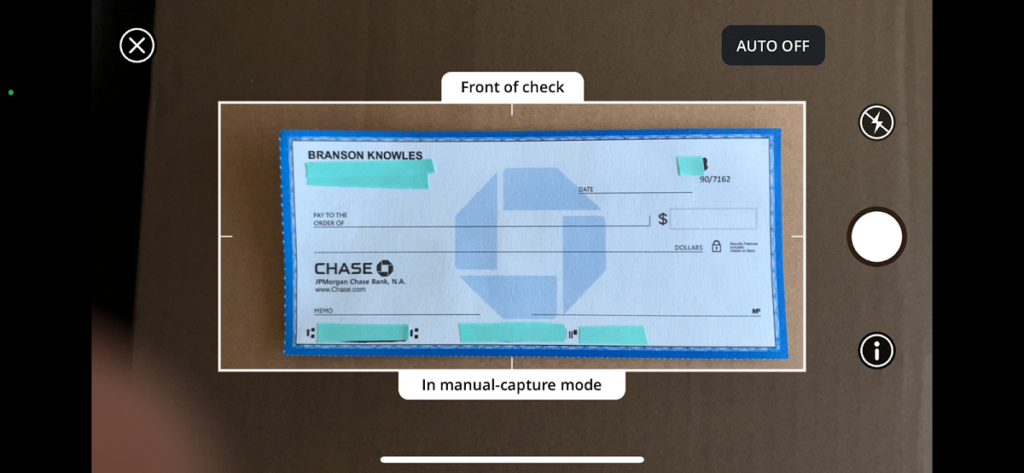
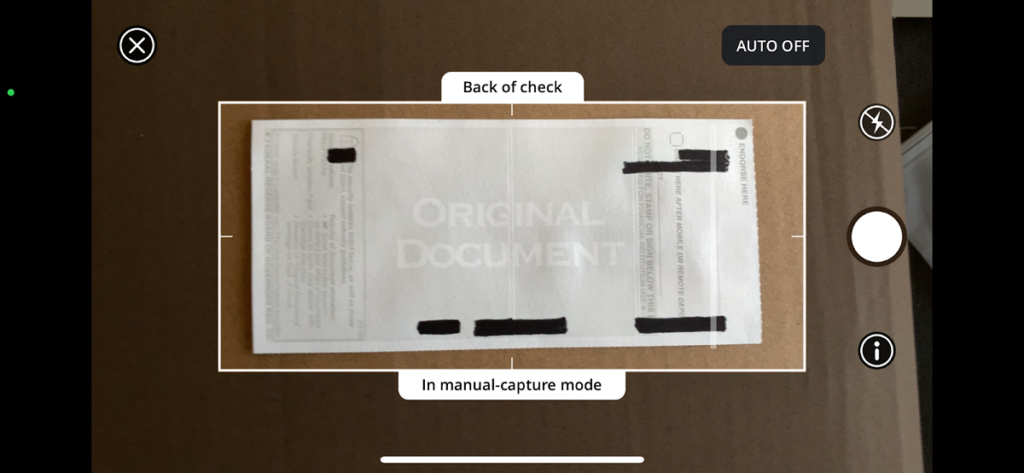
Most banking apps include on-screen guides for users to follow with a handy frame that helps when taking a picture. It comes on screen in the shape of a long rectangle — just like a check. By fitting the check within the frame, you can ensure that the bank gets the best quality picture possible. If you don’t they’ll usually let you know.
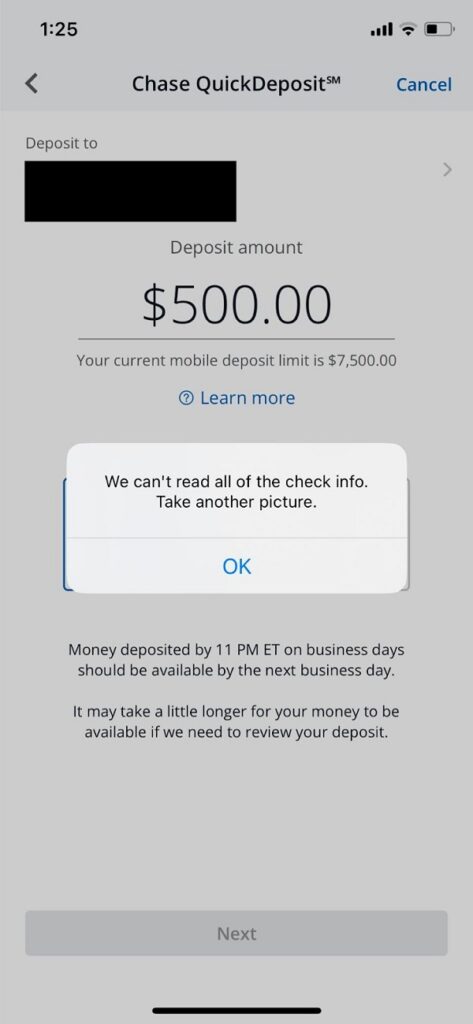
If the picture quality isn’t good enough, the bank app will send a notification and won’t allow you to move forward.
6. Take a Picture of the Back of the Check
The mobile banking app you’re using will let you know if the picture of the front of the check is acceptable. If it is, you can flip the check over onto its back.
7. Enter Amount and Confirm Your Deposit
After you’ve taken a picture of the front and back, you will be asked to type in the exact dollar amount written on the check.
Once you’ve entered the correct amount, you should see a button to submit the deposit.
Click that button and the check should be on its way to your account!
While mobile banking apps are a great way to deposit your checks without heading down to your bank, not all phones can support this. Check with your bank and the app on your app store to make sure your technology is up to the task.
How to Deposit a Check Online by Using a Scanner
Scanners are less common than mobile banking apps. It’s no surprise, just about everyone already has a mobile phone for the app but not everyone wants to get a scanner.
Most banks also only offer this feature for their business customers. If you are a business customer though, this may be a great option for you.
Just like depositing your check by taking a picture, every bank has a different version of this process. No matter the bank however, the process is usually similar:
1. Open the Check Scanning Software
Each check scanner will have its own software, or button, you can click on. For Chase Bank, the way to scan checks starts the same as taking a picture of them. Simply click the ‘deposit checks’ button.
If you have a business account, the app should then ask how you’d like to make your deposit. Answer “scan” and your scanner should turn on.
2. Verify Your Checks
Just like taking a picture, it’s important to make sure each of your checks is valid and negotiable. Your bank will charge returned item fees if they see any mistakes, so don’t let them.
3. Enter the Total Amount of the Deposit
Your mobile banking app will automatically assume you have multiple checks if you’re using a scanner. That’s because scanners are usually used by business customers.
Whether you have one check or nine, calculate the total amount of your deposit and enter it into the screen.
4. Scan Your Checks
Place your checks into the scanner. The machine should let you know which way the checks are facing. Make sure they’re all facing the same way or some of the checks won’t be read.
5. Finalize Your Deposit
Once the checks have been scanned, the app will ask if the dollar amount it read matches. Confirm that, hit deposit, and the money should be on the way to your account.