



Last Updated on September 1, 2026 by TMB
- Quick Answer
- How to Access Your Chase Bank Accounts Through Your Computer
- How to Access Your Chase Accounts Through Your Phone
- 1. Download The Chase Bank Mobile App
- 2. Enroll in Mobile Banking
- 3. Log in Using Your Username and Password — or Skip the Password Entirely with Face ID
- How to Access Your Chase Accounts Using a Tablet
- What to Do If Your Chase Account Is Locked
- How Do You Find User ID For Your Chase Account
- FAQs
Quick Answer
You can access your Chase account by logging in at chase.com or through the Chase Mobile app, using your username and password, biometrics, or a passkey. If you’re not yet enrolled, you can sign up online at chase.com or with a banker in person. Forgot your login info? Use the “Forgot username/password?” link on the sign-in page to recover it.
Chase Bank was one of the first banks in the world to offer online banking, and today the large majority of its customers are enrolled.
Chase’s online platform makes it simple to manage your finances from a computer, phone, or tablet — here’s how to enroll, log in, and recover your account if you’re ever locked out.
There are three ways to access your Chase account online:
- Through Your Computer at https://www.chase.com/
- Through Your Phone or the Mobile App
- Through Your Tablet or the Mobile App
How to Access Your Chase Bank Accounts Through Your Computer
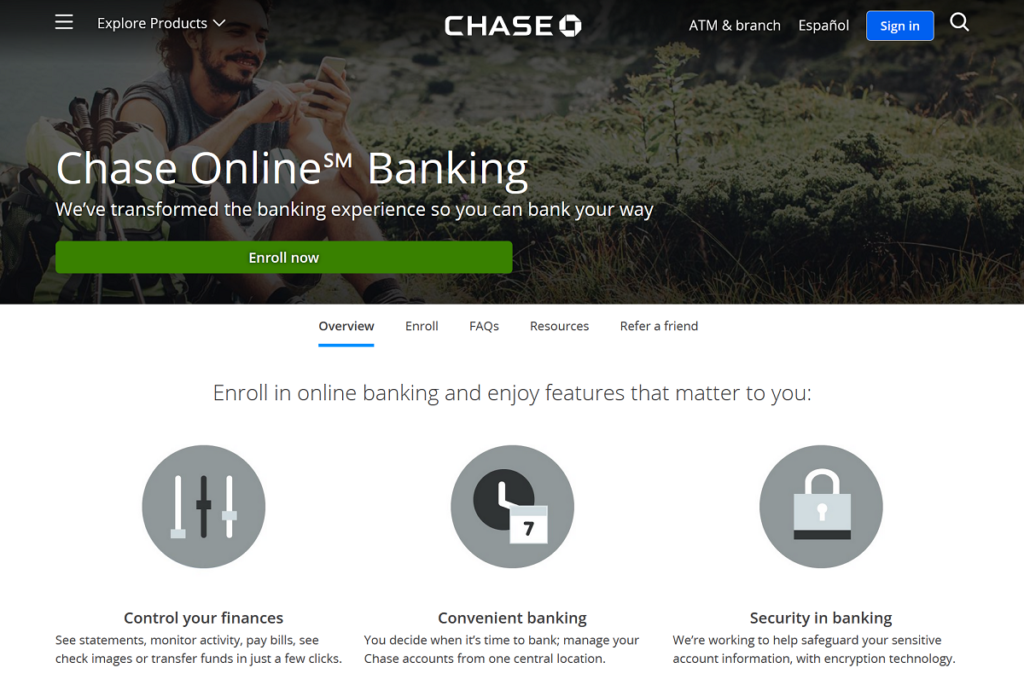
1. Enroll in Online Banking
If you haven’t already done so, make sure you’re enrolled in Chase Bank’s online banking program. You can do so in one of two ways: either in person with a banker, or online!
You can do so in one of two ways: either in person with a banker, or online.
If you choose to head into your local branch and have a banker assist you, they’ll be able to do the whole process from their computer.
- First, they will check to make sure you really haven’t ever enrolled.
- Second, they’ll hand you their keyboard and turn their screen over to you so you can create a username and password.
- Don’t tell your banker your password either! They can see your username, but not your password.
If you choose to enroll on your own, the process is just about the same.
- First, go to Chase.com.
- From there, click on “Not enrolled? Sign up now”.
- Chase will ask for your account number, name, and social security number.
- If you’re already a customer, they’ll find your accounts and link them to your new username and password!
2. Head to Chase.com
This is a step you might have already completed if you enrolled online. Heading to Chase.com is one of the easiest ways to access your Chase account.
- Open your computer and go to Chase.com
- Enter your username and password.
- It will be the same username and password created during enrollment, whether that happened in person or online.
From there you’re all set. You’ll be able to view all of your account balances as well as your transaction histories. Chase’s online banking stores up to 7 years of bank statements, so you can search through your records if needed.
Chase has also rolled out passkeys as a password-free way to sign in at chase.com. A passkey uses your device’s biometrics or PIN to unlock a secure key stored on your device — there’s no password to type, remember, or have stolen through a fake login page. If you’d rather skip passwords entirely, look for the option to set up a passkey in your account security settings after logging in the traditional way once.
Note: As of September 1, 2026, Chase currently supports passkeys for signing in through web browsers only.
How to Access Your Chase Accounts Through Your Phone
1. Download The Chase Bank Mobile App
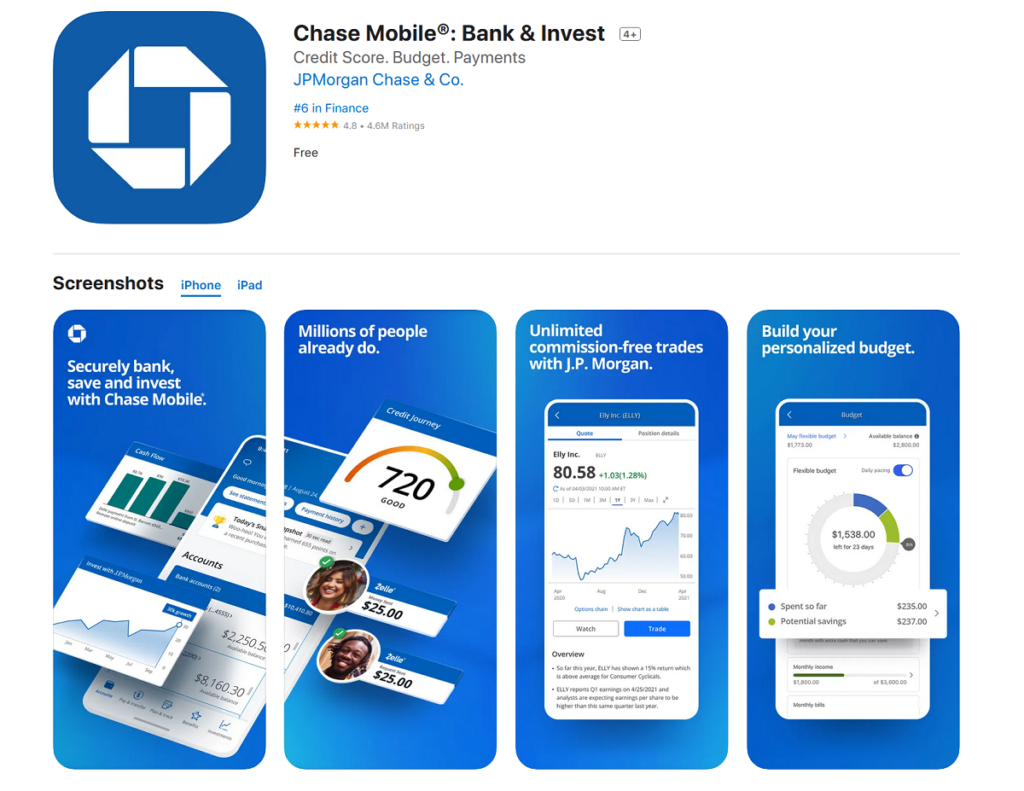
While you can use your phone to go to Chase.com, the Chase Mobile app is built specifically for phone use and remains the primary way most customers interact with Chase on mobile.
If you have an iPhone, you can find the Chase Mobile app on the App Store. If you have an Android, the Mobile app can be found on the Google Play Store.
No matter which app store you use, the Chase Mobile app encrypts your data and offers multiple layers of security, including biometric login and passkey support (more on that below).
The app is named “Chase Mobile®: Bank & Invest,” and the logo is the classic blue and white octagon, making it easy to spot.
2. Enroll in Mobile Banking
This process is similar to online enrollment — you’ll enter your Social Security number, account number, and identification to begin using Chase’s digital features. Mobile banking works much like online banking, except it requires the app rather than just a website.
You only need to enroll once. After the initial setup, you’re ready to log in.
3. Log in Using Your Username and Password — or Skip the Password Entirely with Face ID
After creating a username and password, you’ll normally use it every time you log into the Chase Mobile app. Fortunately, Chase, Apple, and most Android manufacturers offer faster ways to get in.
If you’re an iPhone user, you can log in with Touch ID or Face ID through the Chase Mobile app — using your fingerprint or face instead of typing a password. Android users have a similar option with facial recognition or fingerprint-reading keypads, depending on the device.
This can be turned on or off anytime in the app’s settings.
Between biometric app login and saved usernames/password memory, most Chase customers now have a fast, secure way to log in without typing a password every time.
How to Access Your Chase Accounts Using a Tablet
Tablets combine much of the convenience of a phone with the screen size of a computer. To access a Chase account on a tablet, you can either go to Chase.com or download the mobile app.
Using a tablet works exactly like using a phone or a computer, depending on which you choose. If you go to Chase.com on a tablet, follow the computer instructions above; if you download the Chase Mobile app, follow the phone instructions above — the process is identical either way.
The app is generally the more convenient option on a tablet, since it avoids typing a full URL just to check a balance.
What to Do If Your Chase Account Is Locked
Chase may temporarily lock an account after several failed login attempts, or if its systems flag unusual login activity as a precaution. This isn’t necessarily a sign anything is wrong — it’s a security measure.
If an account is locked:
- Use the “Forgot username/password?” link on the Chase sign-in page to verify identity and regain access — this is often the fastest way to unlock an account without calling in.
- If online recovery doesn’t resolve it, call Chase’s personal banking support line at 1-800-935-9935 for help.
- A branch banker can also assist in person with identity verification.
How Do You Find User ID For Your Chase Account
It happens to the best of us: no matter how hard we may try, we all lose our passwords and UserIDs. If you lose yours, don’t worry. Getting it back is a breeze.
To recover either your lost password or User ID with Chase Bank, you have one of three options:
Talk to a Banker
As always, bankers are your best friend at Chase bank. I know it sounds crazy, but during my time as a banker working for Chase my main job was to act as an advisor to my customers, not a salesman. I had dozens of customers come in looking for password related help, so don’t be shy! Say hi to your local banker if you want some assistance.
In the branch, your banker is able to see your User ID. If you can show them your driver’s license, they should be able to access your account and show you your User ID.
Unfortunately (or fortunately, depending on how you look at it), bankers at Chase aren’t able to see your password. What they can do, however, is reset it with you. Computers at Chase Bank sit on a swivel, meaning you can type your new password in yourself once your banker spins your screen over to you!
Reset it on Chase.com
Another easy way of resetting your information is on Chase’s website.
- To recover your User ID, click “forgot username/password?” on Chase.com.
- After that, click “forgot username”.
- From there, Chase.com will ask for your account and social security numbers respectively.
If you are able to provide those, you should be able to reset everything right online!
Reset it on The Chase Bank Mobile App
You didn’t think we were going to skip out on the mobile app, did you? The process to recover and reset your username or password on the mobile app is the same as Chase.com.
Click the buttons asking if you forgot your information, follow the prompts, and voila! You’ve reset your password and/or username without even needing help from a banker!
FAQs
Can I access my Chase account without the app?
Yes — log in at chase.com from any browser, or check balances without logging in at all using text banking or Chase’s phone support line.
What’s the difference between a passkey and biometric login?
Biometric login (Face ID, Touch ID, fingerprint) unlocks the Chase Mobile app itself.
A passkey is a separate, passwordless way to log in to chase.com using the same kind of device-based verification — currently only available on the website rather than the app.
How do I know if a Chase login page is fake?
Check that the address bar shows chase.com exactly, with a padlock icon, and never enter login details after clicking a link from an unexpected text or email — go to chase.com directly instead.
What should I do if I think my account was accessed by someone else?
Contact Chase immediately at 1-800-935-9935 rather than trying to resolve it through the app or site alone.
Do I need to enroll separately for online banking and the mobile app?
No — one enrollment covers both; the same username and password (or passkey) work across chase.com and the Chase Mobile app.
Yes — log in at chase.com from any browser, or check balances without logging in at all using text banking or Chase’s phone support line.
Biometric login (Face ID, Touch ID, fingerprint) unlocks the Chase Mobile app itself.
A passkey is a separate, passwordless way to log in to chase.com using the same kind of device-based verification — currently only available on the website rather than the app.
Check that the address bar shows chase.com exactly, with a padlock icon, and never enter login details after clicking a link from an unexpected text or email — go to chase.com directly instead.
Contact Chase immediately at 1-800-935-9935 rather than trying to resolve it through the app or site alone.
No — one enrollment covers both; the same username and password (or passkey) work across chase.com and the Chase Mobile app.